Peel — My Digital Closet
Your whole closet, on your iPhone.
Photograph your clothes once, then build outfits, plan your days and pack your trips. It all stays on your phone.
One-time purchase · [[PRICE]] · iPhone
No account, no subscription. Nothing is ever sent to us.
How it works
Photograph or import your clothes — Peel does the rest.
Step 1
Photograph or import
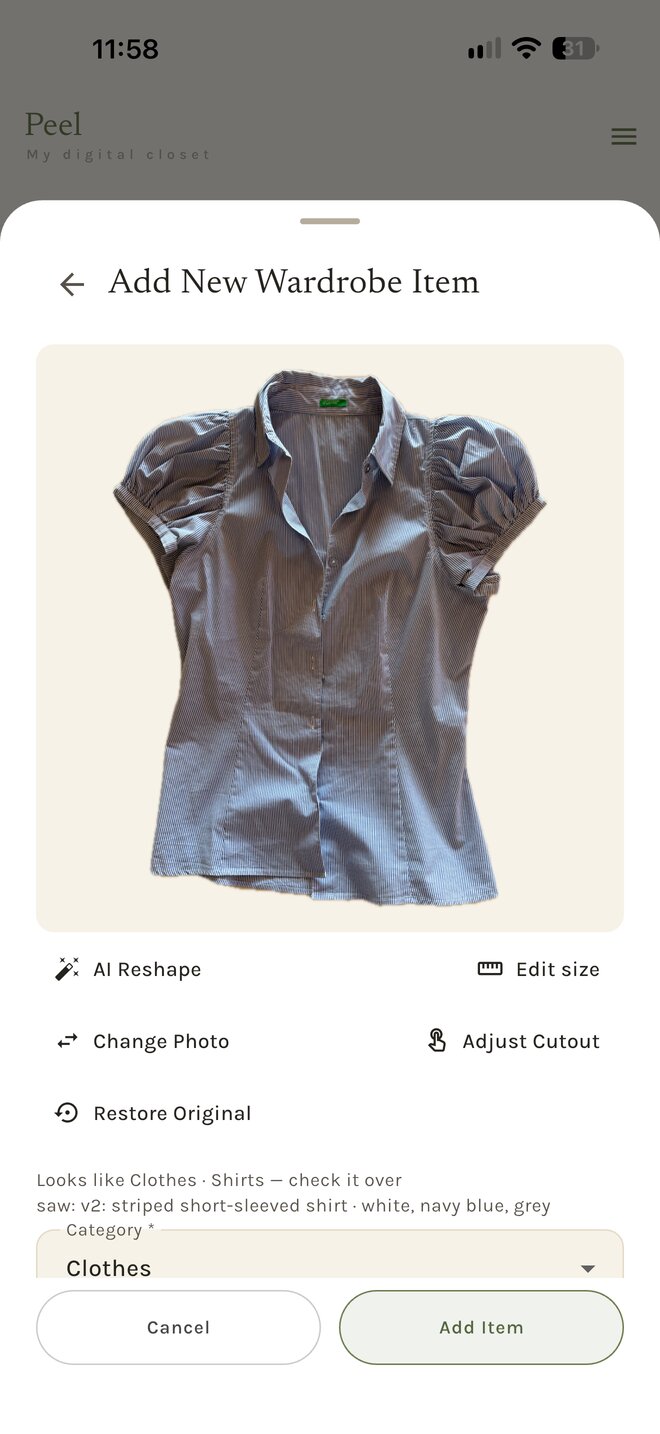
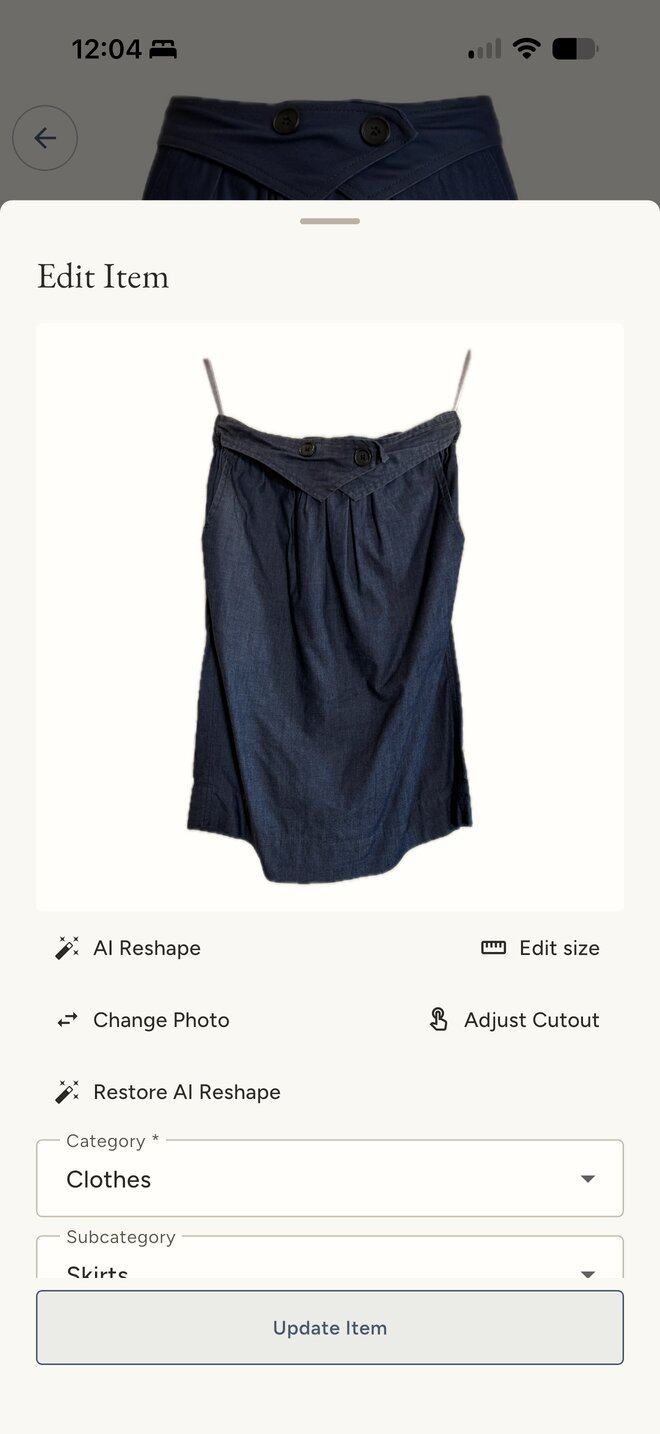
Take a photo of a garment or import one from your library. The background goes automatically, and when Peel recognises the piece it suggests a category and a season for you to confirm.
Step 2
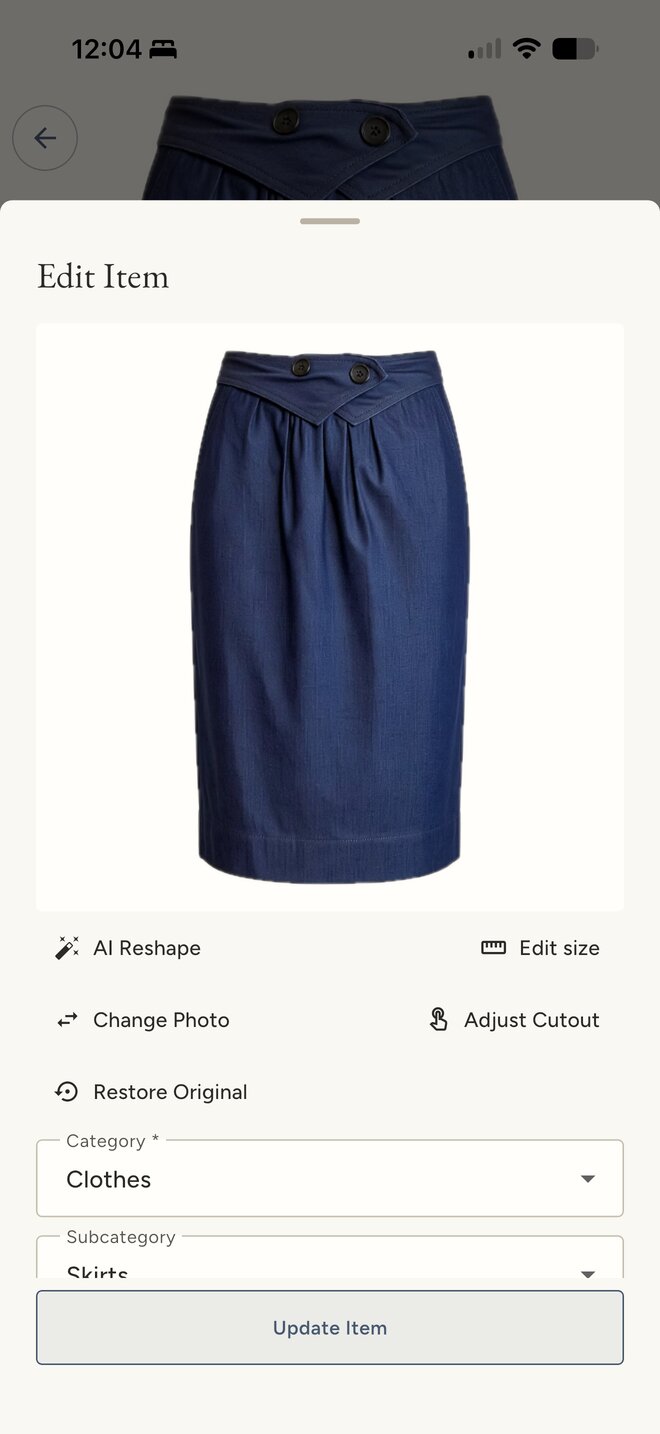
Reshape it, if you like
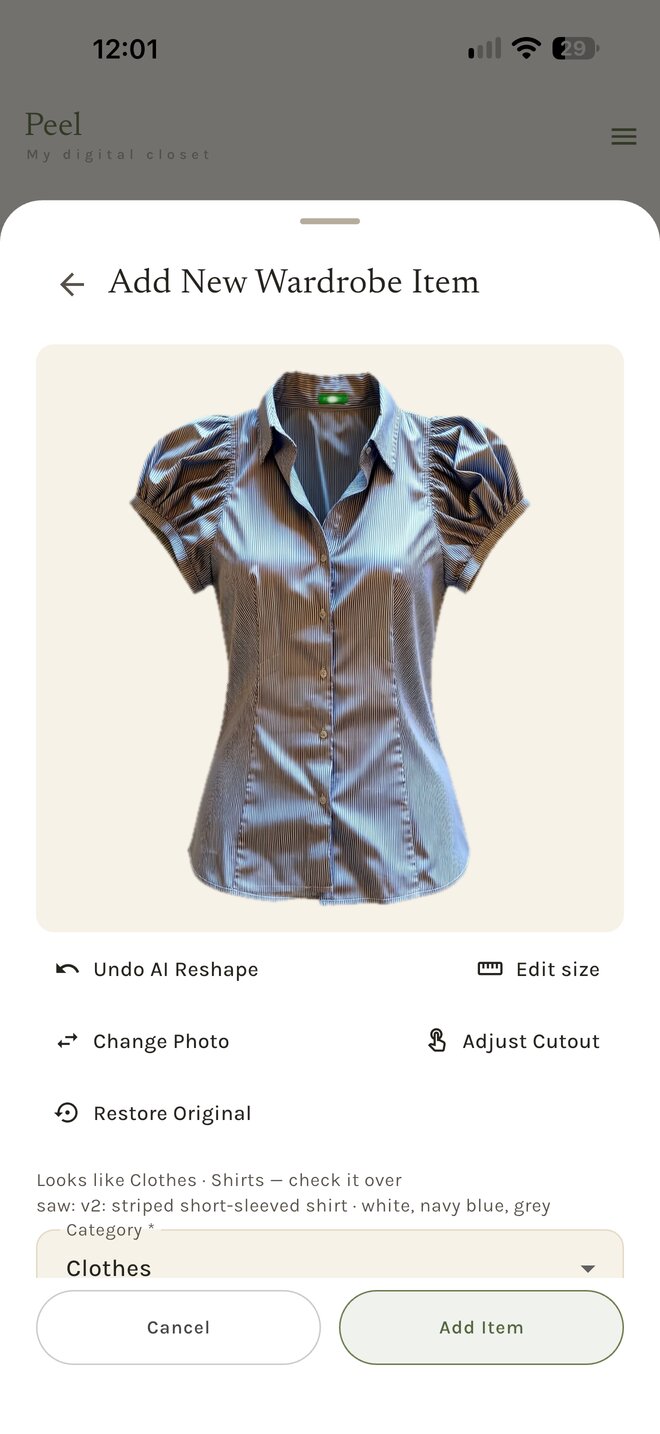
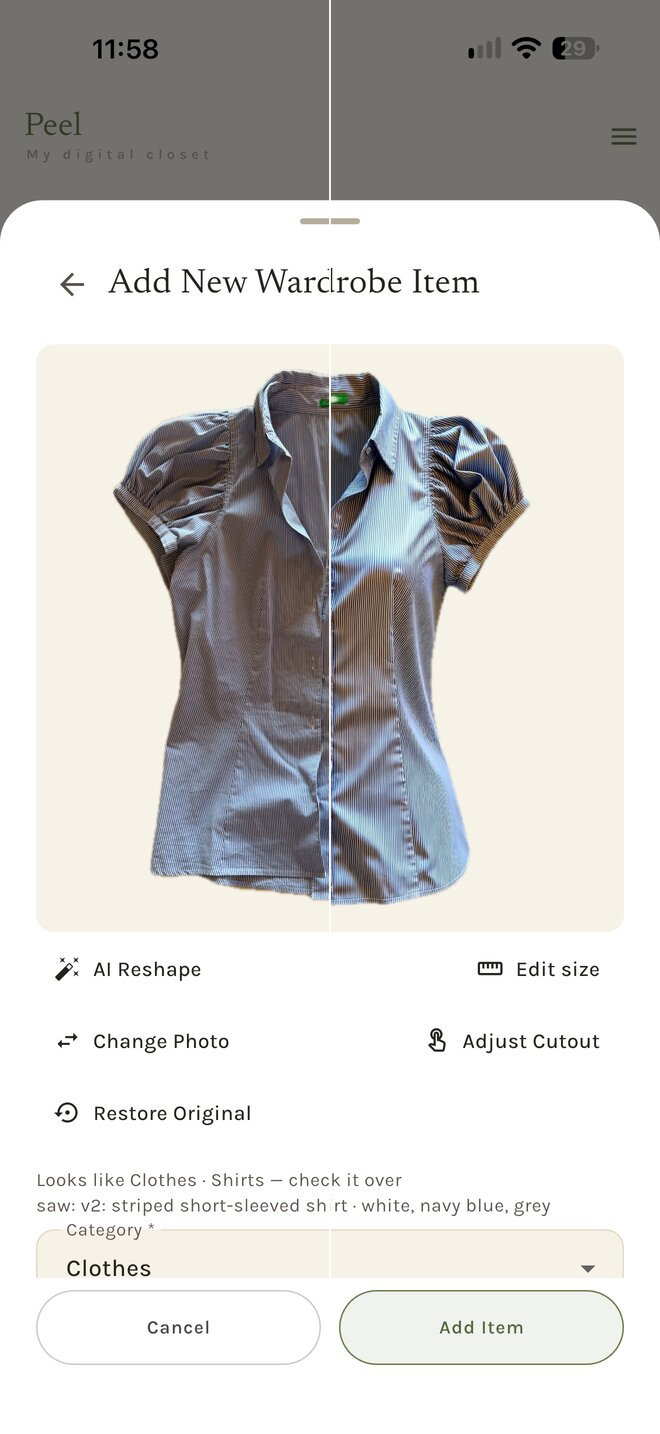
AI Reshape redraws the cutout as if someone were wearing it: pressed, in shape, seen straight on. Outfits read better and pieces are easier to match. Your original photo is kept. Needs Apple Intelligence, iPhone 15 Pro or newer.
Step 3
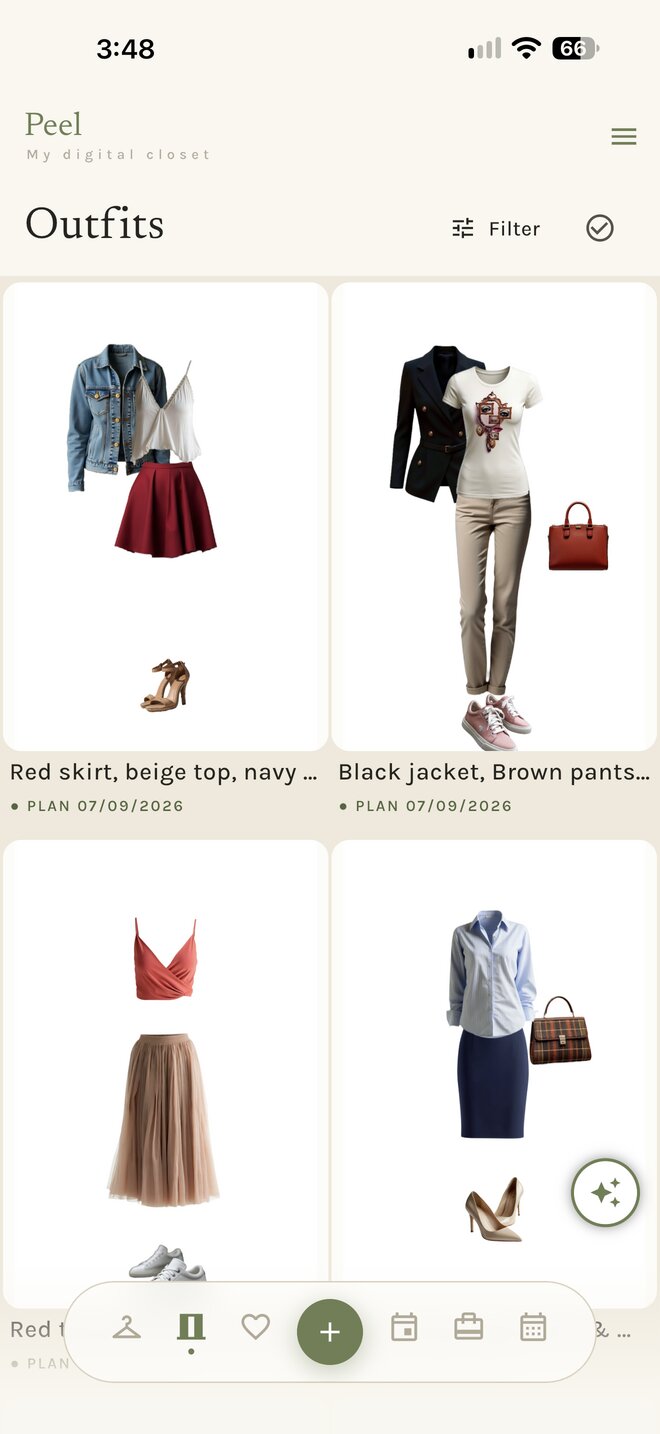
Build outfits
Pick your pieces into an outfit, or let Mix & Match shuffle them. Save the look, plan it onto a day, pack it for a trip.
Features
Six tabs, one closet.
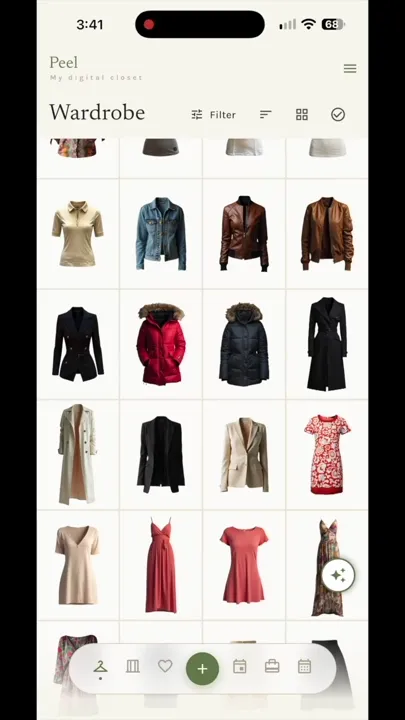
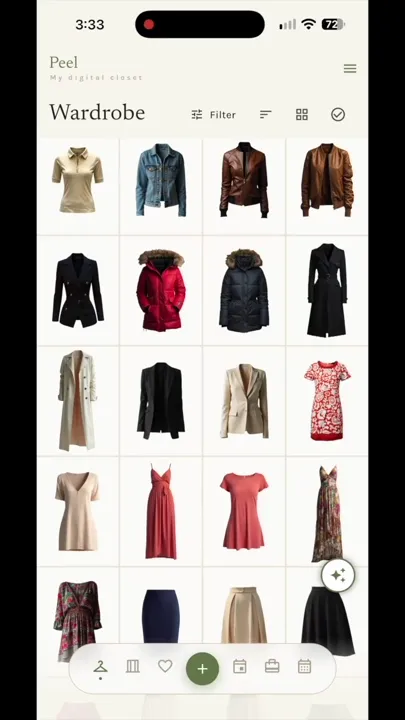
Wardrobe
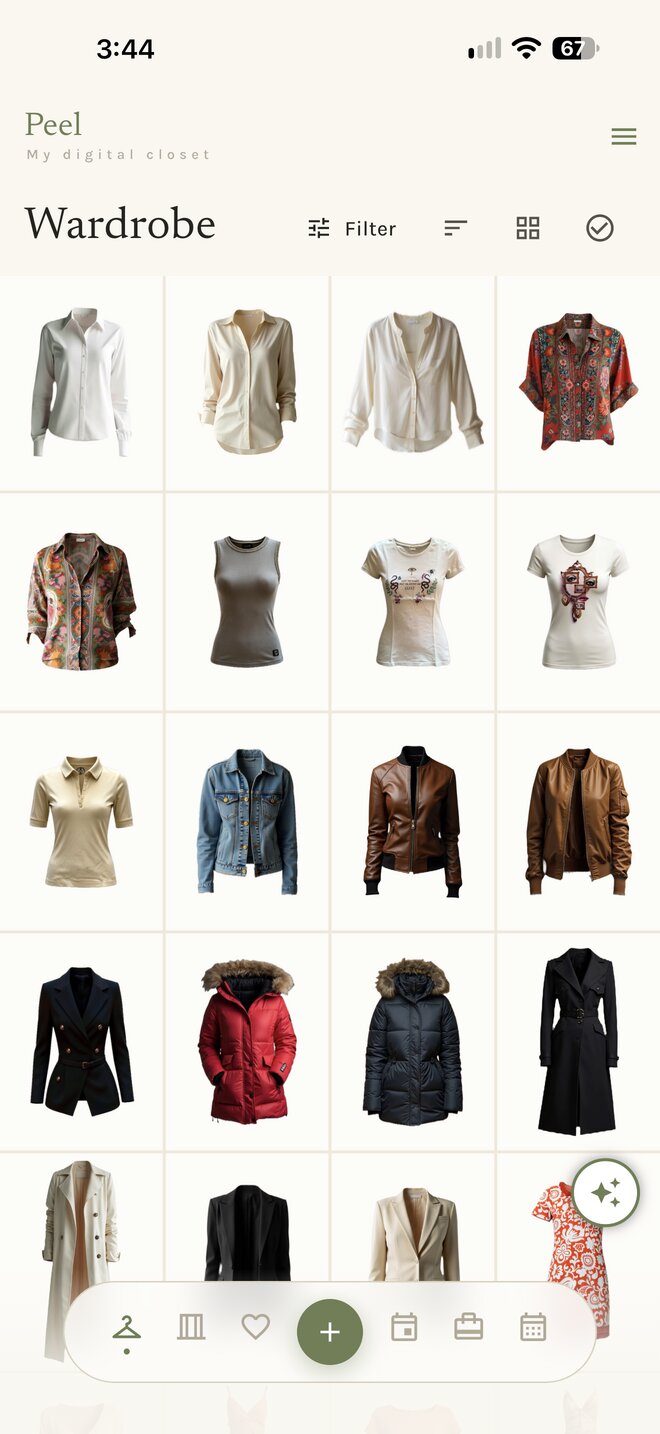
Every piece you own in one grid. Photograph or import a garment and the background is removed for you. Sort by category and season, filter, or select many at once.
The Wardrobe tab →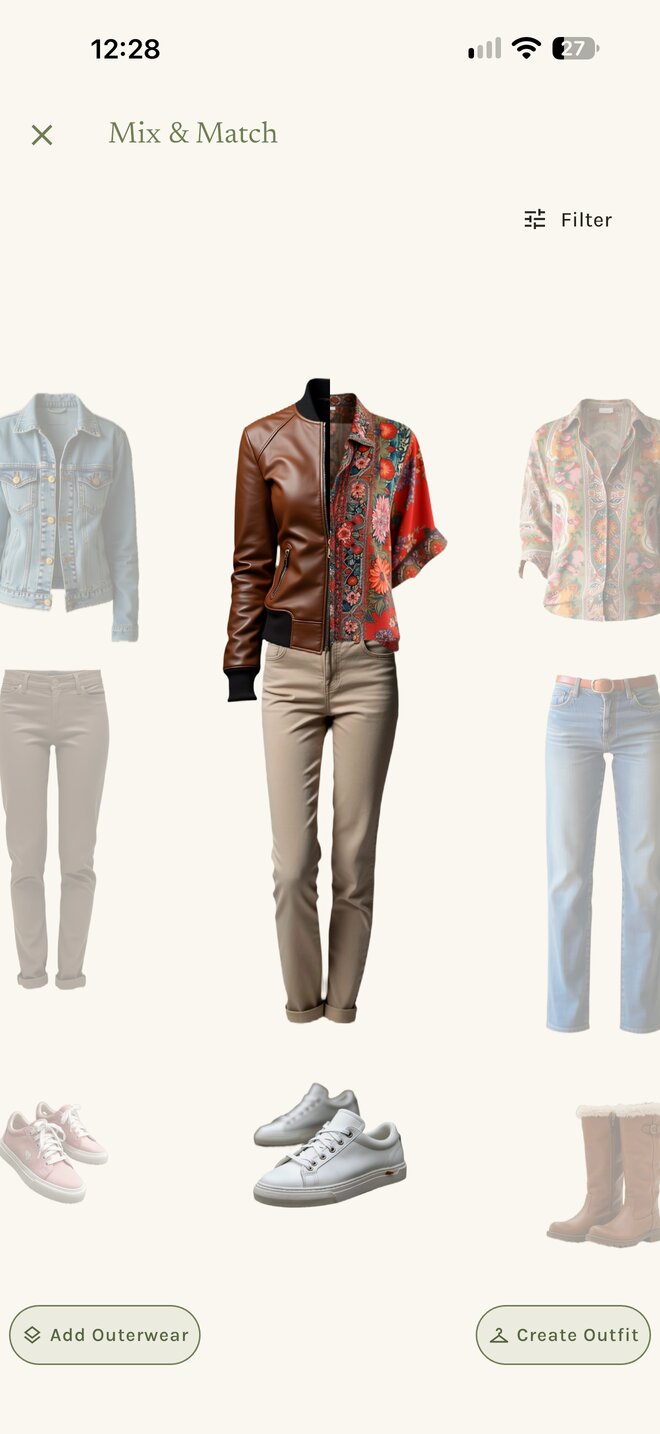
Mix & Match
Swipe tops, bottoms and shoes until it clicks, then save the look as an outfit.
The Outfits tab →Outfits
Keep your looks. Each outfit remembers its pieces, when you wore it and when you plan to.
The Outfits tab →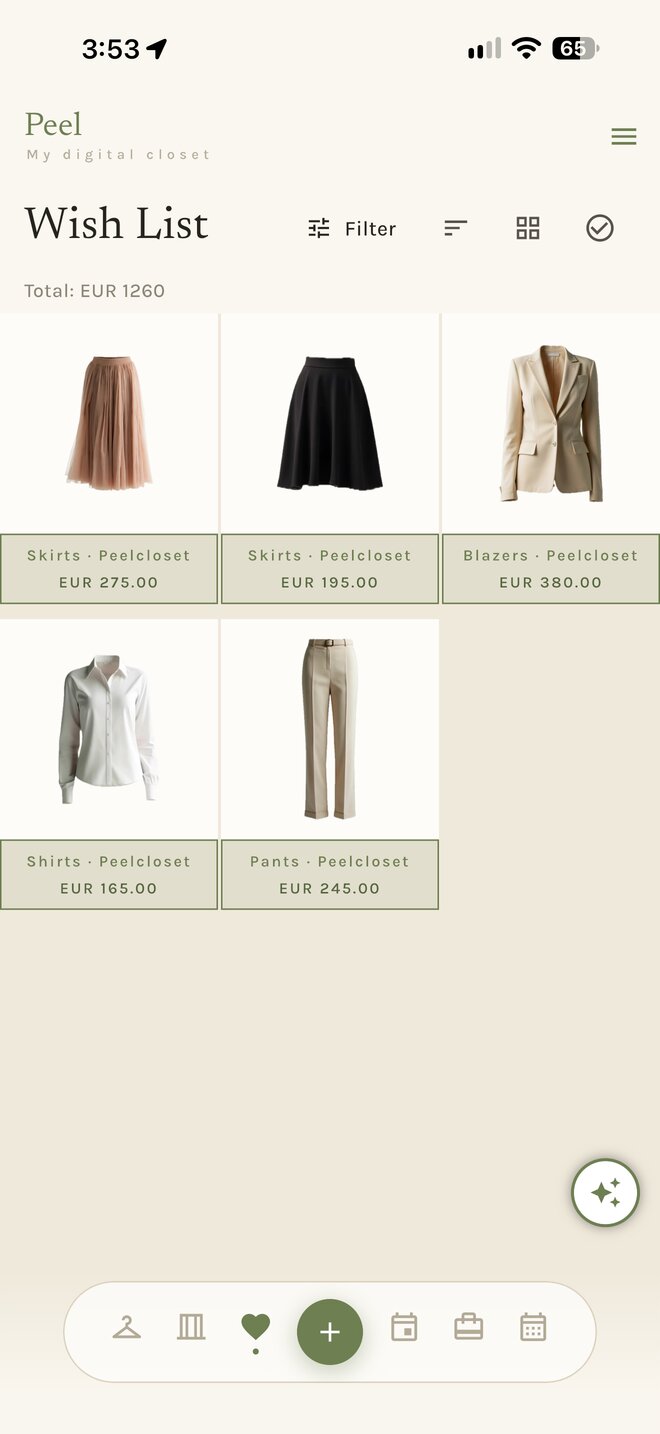
Wish list
Keep what you are thinking of buying, with price and store. Browse shops inside Peel, or share a product page from Safari.
The Wish List tab →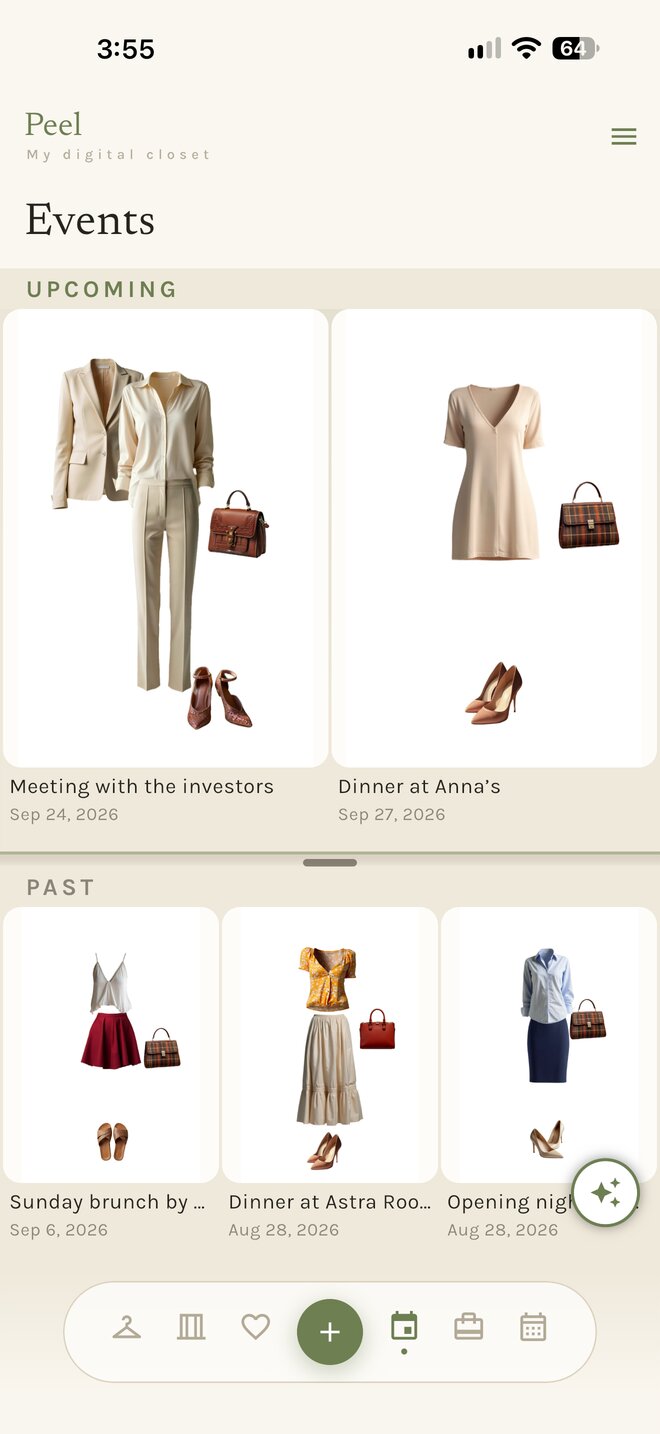
Events
Dress the big days — weddings, dinners, interviews. An event keeps its date, its look and its history.
The Events tab →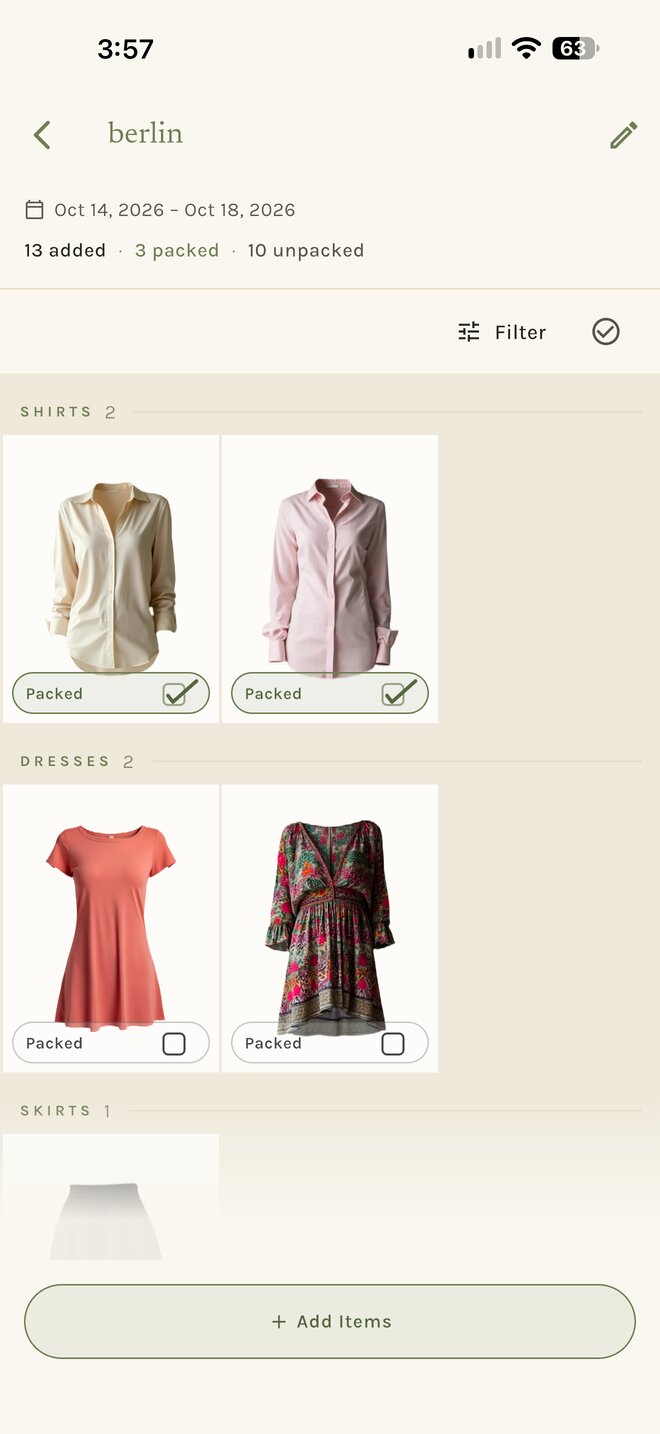
Trips
Pack from your own closet, piece by piece, and tick things off as they go in the bag. The destination’s weather comes along.
The Trips tab →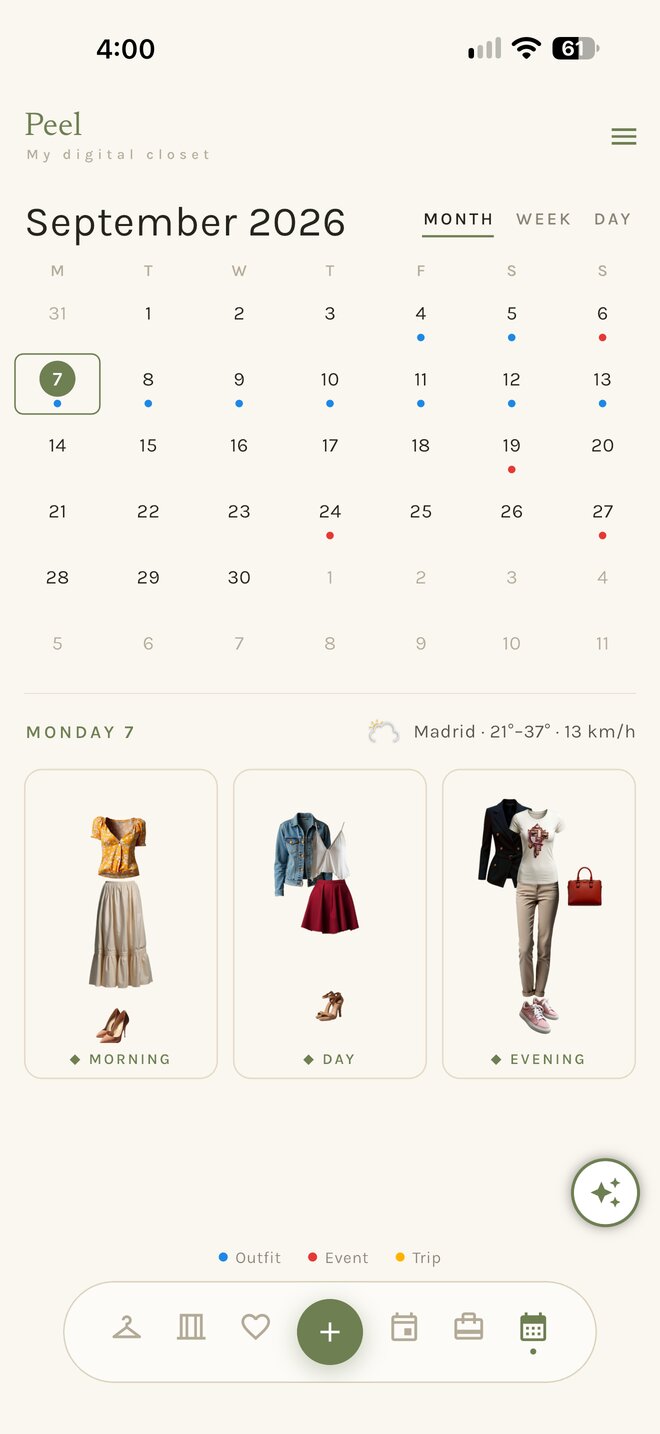
Calendar
Plan outfits onto days ahead, look back at what you actually wore, and see the weather beside each day.
The Calendar tab →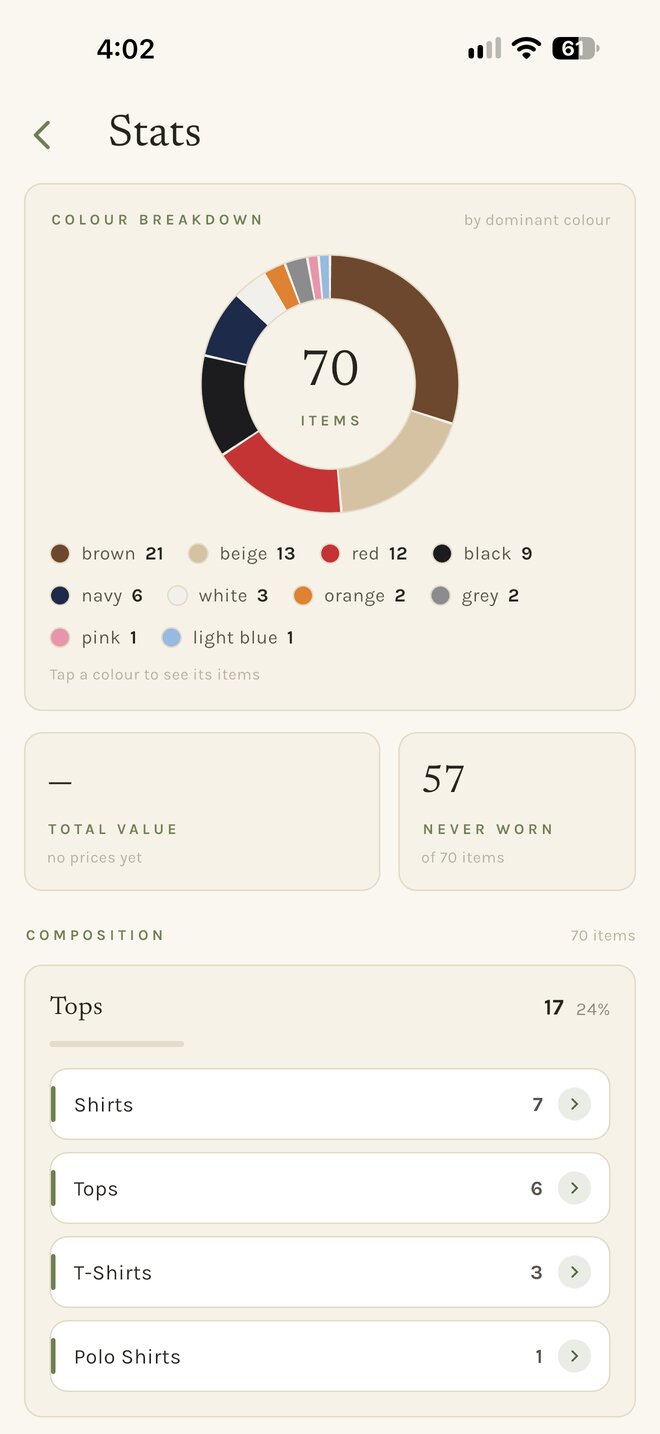
Stats
What you own, by colour and category. Cost-per-wear once you add prices, and what you have never worn.
Lives on your iPhone
At home on the phone it lives on.
- Home-screen widgets
- Today’s look and what is planned next, without opening the app.
- Siri and Shortcuts
- Peel’s actions appear in Shortcuts, so a spoken request or an automation can open the right screen.
- Share to Peel
- A photo from Photos becomes a garment; a product page from Safari becomes a wish.
- 450 style tips
- Short, plain notes on colour, cut and pairing, one at a time, inside the app.
- A built-in tour
- Each tab has a coach card with a short clip. Replay the Tour any time from the menu.
- Seven themes
- Pick the one that feels like your closet. See them below.
Seven themes
The same closet, seven ways to look at it.
Pick a theme and the screens below change with it. Showing Solstice.
Switching themes · 44 s
Wardrobe 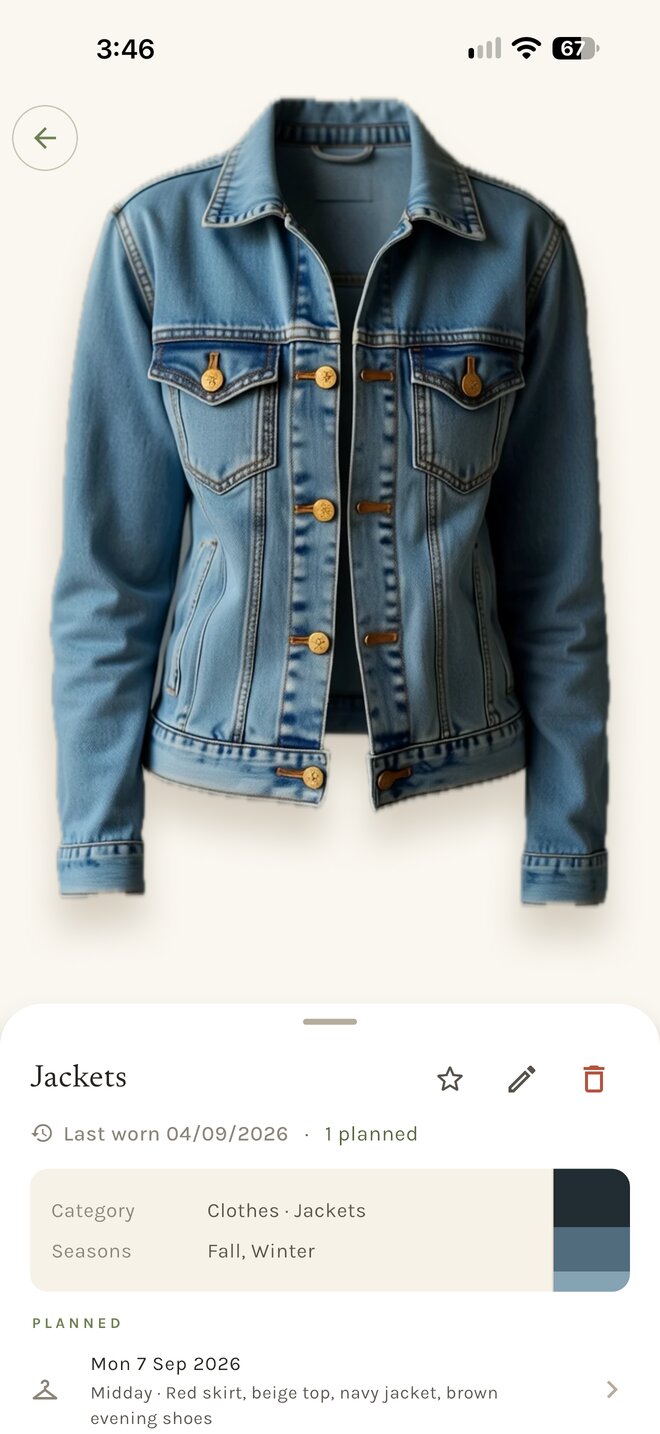
Item Outfits Wish list Events Trip Calendar Stats
The AI corner
Peel is a closet app first. The AI corner is a bonus, not the point.
Treat every result as a sketch, not a mirror. Use it for fun, not for decisions.
The AI runs on your device, or on Apple’s Private Cloud Compute under your own Apple Account. Your data is never sent to us.
Needs Apple Intelligence, iPhone 15 Pro or newer.
AI look · 76 s
AI look
Try an outfit from your closet on a photo of yourself. A styled preview, not a mirror.
Needs Apple Intelligence, iPhone 15 Pro or newer.
AI Reshape
Redraws a garment photo as a clean cutout. Auto handles simple pieces; Advanced is for complex ones. Your photo is kept. Restore Original brings it back at any time.
Needs Apple Intelligence, iPhone 15 Pro or newer.
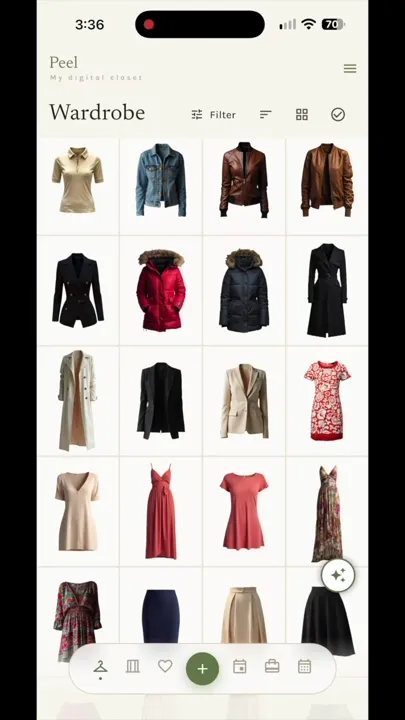
Rate an Outfit · 48 s
Rate an Outfit
Ask for a second opinion on a look you have put together.
Needs Apple Intelligence, iPhone 15 Pro or newer, and iOS 27.
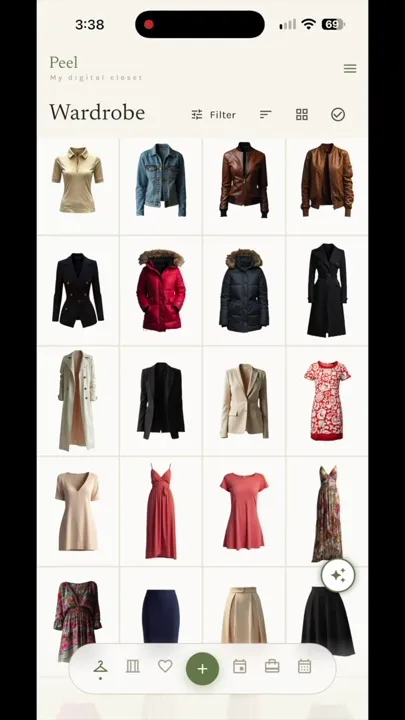
Find Matches · 48 s
Find Matches
Pick a piece and see what in your closet goes with it.
Needs Apple Intelligence, iPhone 15 Pro or newer.
Two demo closets
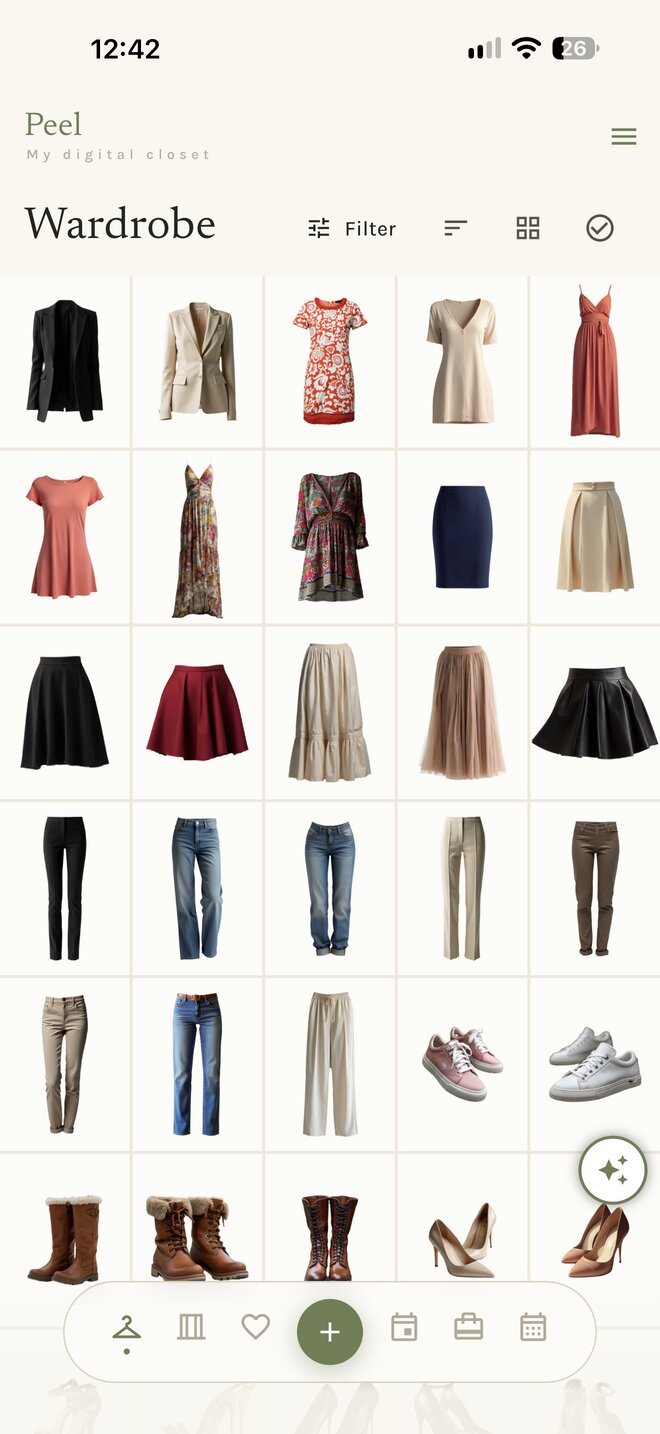
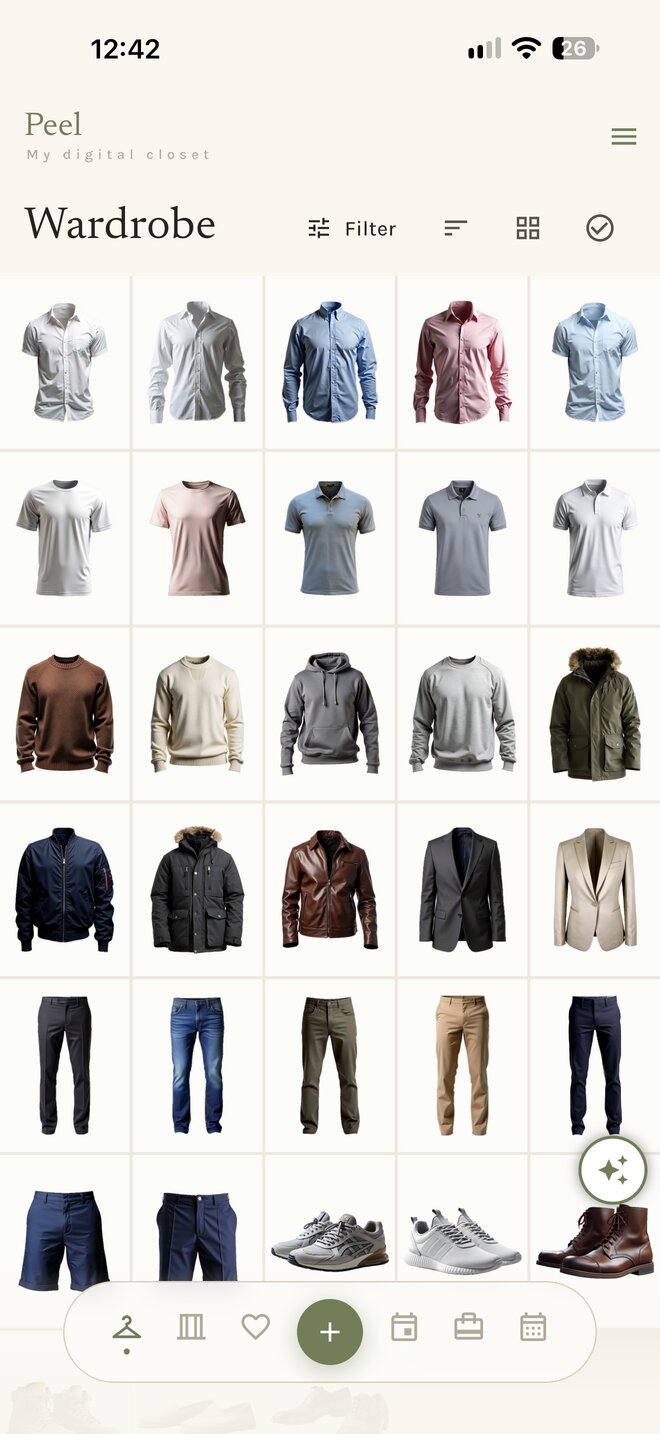
Play with sample clothes first. Your own closet is one tap away in Settings.
The Welcome card offers a woman’s or a man’s demo closet, at first launch or from Replay the Tour. Explore every tab with it, then switch to your own closet in Settings → Closets whenever you like.
Privacy
Nothing is ever sent to us.
- No account, no sign-up. Peel does not know who you are.
- Your closet lives on your phone. We run no servers that hold it.
- Backups are .peel files in your own iCloud Drive. They survive deleting the app.
- This website collects nothing: no analytics, no cookies, no trackers.
closet.peel→Your iCloud Drive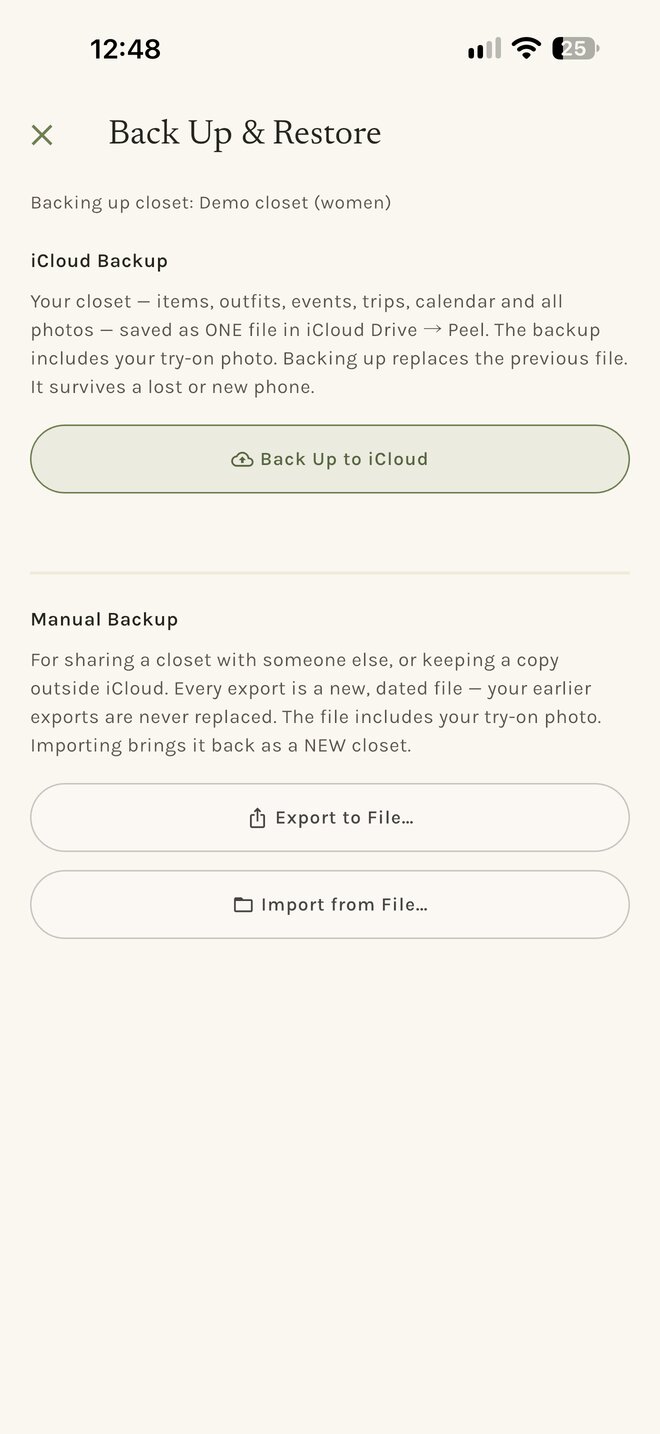
Price
One purchase. No subscription, no credits, no account.
Apple provides the AI tools for free. That is why Peel is sold once, never rented, with no tokens to buy.
[[PRICE]]
once, on the App Store
- Everything in the six tabs
- The AI corner, where your iPhone supports it
- Updates included
Questions
Asked first.
Do I need an account?
No. There is no sign-up and no login — open the app and start adding clothes. Peel works offline, on a plane, anywhere.
Is my wardrobe visible to anyone else?
It can’t be. There is no server and no account: your closet exists only on your device. See the Privacy Policy for the full picture.
What is AI Reshape?
It redraws a garment as if worn — a clean, shaped product shot from a photo of clothes on your bed. It uses Apple Intelligence on supported iPhones (iPhone 15 Pro or newer with Apple Intelligence enabled). On other devices everything else in Peel works normally; only this feature is unavailable.
If I delete the app, do my backups go too?
No — and that’s deliberate. Deleting Peel removes what it stores on the device, but your
.peelbackup files are ordinary documents in your iCloud Drive, so they stay right where they are. Reinstall Peel and they appear in the restore list again. (Only an export you saved into the app’s own “On My iPhone” folder is removed with the app.) If you want them gone as well, delete them in the Files app.

Peel — My Digital Closet
Coming to the App StoreiPhone · iOS [[IOS_MIN]] or later · The AI corner needs Apple Intelligence, iPhone 15 Pro or newer · Rate an Outfit needs iOS 27.